Aide en ligne SIGLS - OMH Kativik - MAJ 2024-11-27
Stocktaking
<Accueil » Procurement » Stocktaking
The "Stocktaking" screen enables you to carry out stocktaking of materials in a specific warehouse.
Here is the procedure for carrying out stocktaking:
- Go to "Procurement -> Inventory -> Stocktaking".
- From the "Stocktaking" screen, click the "New" button to create a new stocktaking.
The "General" Tab
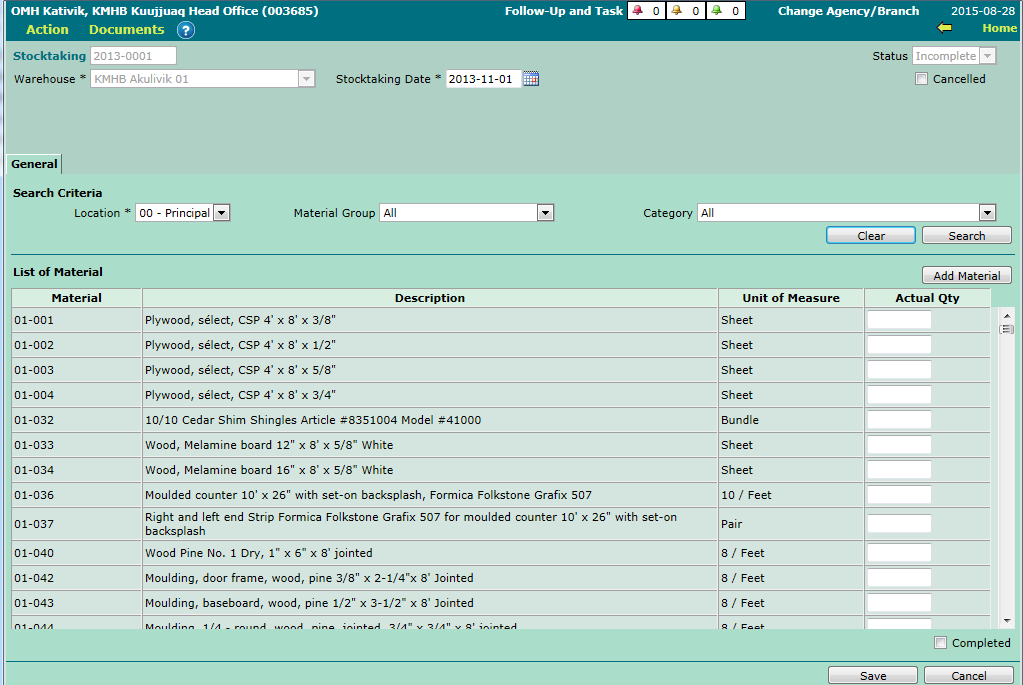
- The "Warehouse" field is mandatory. This field enables you to select the warehouse you wish to carry out the stocktaking for.
IMPORTANT: After selecting the warehouse, click the "Save" button. Saving the information will launch a search for available locations, for the selected warehouse.
- The "Location" field is mandatory. This field enables you to select the location in the selected warehouse you wish to carry out the stocktaking for.
-
- Once the location is selected, the "List of Material" displays all materials associated to the corresponding location.
- The "Material Group" field is optional. This field is available only if a material group has been associated to one or several material categories.
- The "Category" field is optional. This field enables you to filter the "List of Material" by displaying one or all material categories.
The "List of Material" Section
The "List of Material" section shows all materials associated to the selected warehouse's location. The materials can be filtered by "Material Group" and "Category", if needed.
- The "Actual Qty" field enables you to indicate the number of units in inventory for each material.
-
- This field only accepts integers. The value must be between 0 and 9999.
-
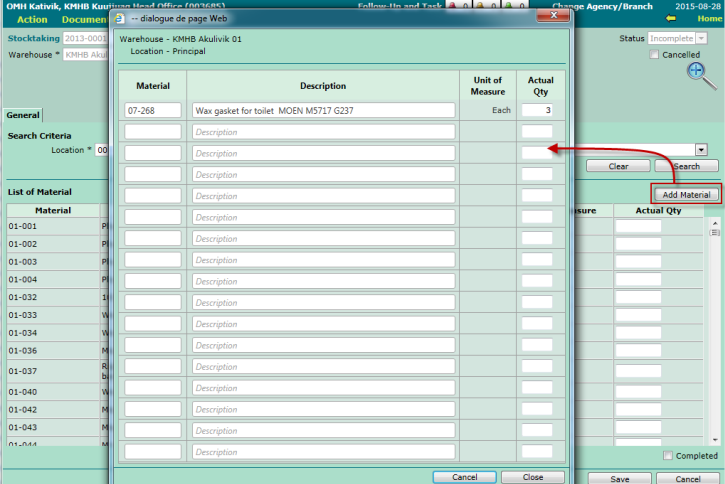
To add one or several missing materials in the list, click the "Add Material" button. A popup window will help you enter the material's code, description and actual quantity for one or several materials. Click the "Close" button to save the new materials.
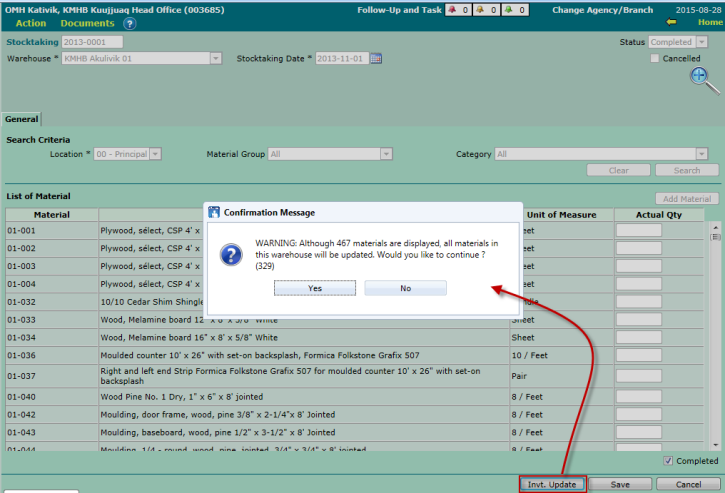
- The "Completed" checkbox enables you to indicate that the stocktaking has been carried out. Once this box is checked and the information saved, the stocktaking's status will switch to "Completed".
-
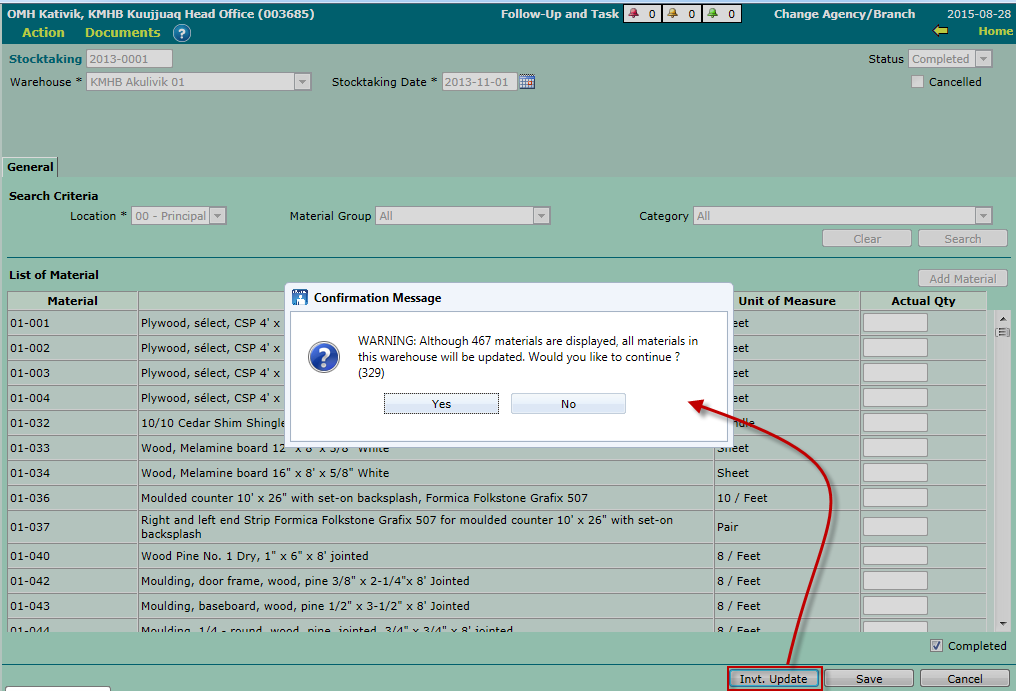
- When the stocktaking is at the "Completed" status, the "Invt. Update" button appears at the bottom of the screen. This button enables you to update the inventory in accordance with the quantities entered in the "List of Material". Please note that this button only appears for users with the required inventory management access rights.
-
-
IMPORTANT NOTE: During the inventory update process, all materials in the selected warehouse will be updated.
-
IMPORTANT NOTE: During the inventory update process, all materials in the selected warehouse will be updated.
© COGIWEB, 2024