Purchase Order
<Accueil » Procurement » Purchase Order
Purchase order creation represents the second step of the inventory and purchase management process. This step aims at creating the materials' purchase order.
Procedure
Here is the procedure for creating a purchase order:
- Go to "Procurement -> Purchase -> Purchase Order".
- Click the "New" button from the "Purchase Order" screen.
The "General" Tab
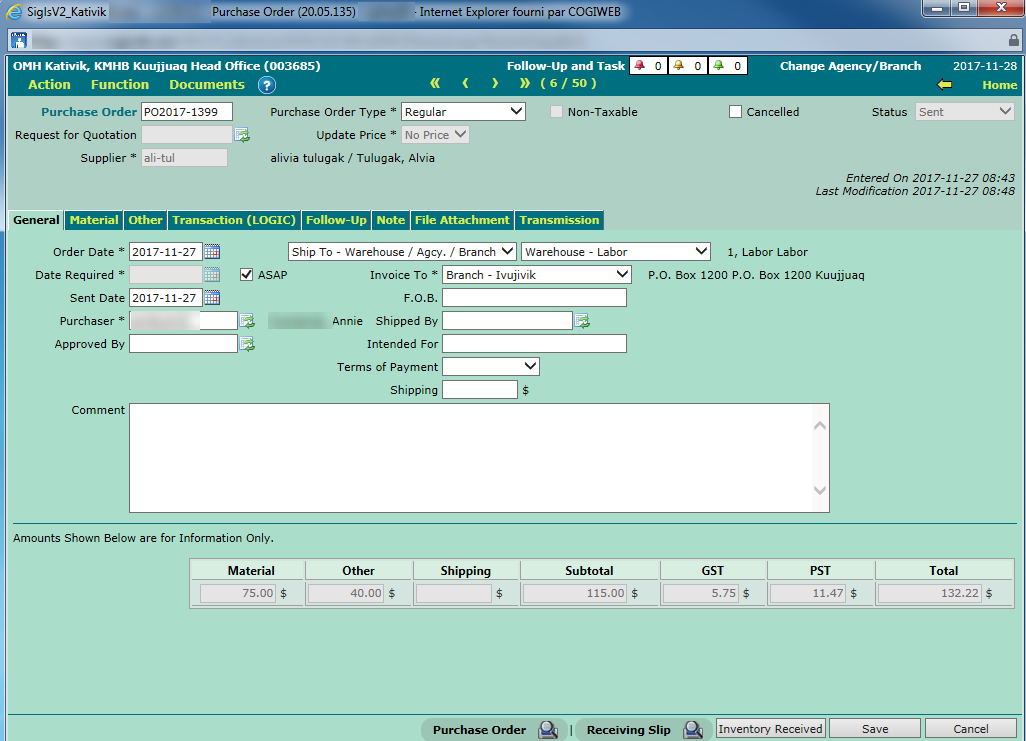
- The "Purchase Order" field is auto-filled by the system after clicking the "Save" button for the first time.
- The "Request for Quotation" field is optional. This field enables you to link a request for quotation to the purchase order.
-
- Only requests for quotation at the "Sent" status are available for entry.
- If you already know the request for quotation's code, you may enter it in the field directly and click the "Enter" key to validate the code.
- If you do not know the request for quotation's code, you may search it using the corresponding list of values.
- Once selected and validated, all the information included in the request ("General" and "Material" tabs) will be copied in the purchase order.
- If only one supplier is associated to the request for quotation, or a supplier has been chosen, they will automatically show up in the purchase order's "Supplier" field. Otherwise, the user will be able to select a supplier among those specified in the request for quotation.
- The "Cancelled" checkbox enables you to cancel a purchase order, as long as it has not been associated to an order reception yet.
-
- The checkbox cannot be modified if the status is "In Receipt" or "Closed".
- No field can be modified if the purchase order is "Cancelled".
- The "Purchase Order Sent" checkbox enables you to indicate that the request has been sent to supplier. Please note that the request's status will switch to "Sent" only if the aforementioned conditions for the "In Preparation" status are met.
-
- The checkbox is not available when the purchase order is either "Cancelled" or "Closed".
- The "Order Date" field is system-generated.
-
- The order date is always today's date. This date is mandatory, and can be modified if needed.
- The "Date Required" field is system-generated.
-
- The "Date Required" is always today's date. This date is mandatory, and can be modified if needed.
- The "ASAP" box is checked when the "Date Required" cannot be provided.
-
- If the box is checked, the "ASAP" label will show up on the purchase order form, and will replace the "Date Required" as a result.
- If the box is checked, the "Date Required" field becomes greyed-out and non-modifiable.
- The "Supplier" field enables you to directly enter a supplier's code or select it using the corresponding list of values.
-
- If the purchase order is linked to a request for quotation, and only one supplier is associated to the request, or a supplier has been chosen, the supplier will automatically show up in the purchase order's "Supplier" field. Otherwise, the user will have to select a supplier from the list, in the request for quotation.
- If the purchase order is not linked to a request for quotation, the user can select a supplier of their choice.
- If you know the supplier's code, you may enter it in the field directly and click the "Enter" key to validate the code.
- If you do not know the supplier's code, you may search it using the corresponding list of values.
- The "Supplier Contact" field enables you to indicate the contact person at the selected supplier.
-
- If the contact person's name is specified in the supplier's profile, their name will automatically show up after validating the supplier's code.
- The "Purchaser" field is mandatory. This field enables you to enter the purchaser's code.
-
- If you know the purchaser's code, you may enter it in the field directly and click the "Enter" key to validate the code.
- If you do not know the purchaser's code, you may search it using the corresponding list of values.
- The "Approved By" field is optional. This field enables you to indicate the person in charge of authorizing the materials and prices that appear on the purchase order.
- The "Accounting Item" field is optional. This field enables you to enter up to 12 alphanumeric characters.
- The "Ship to - Warehouse / Agcy. / Branch" or "Ship To - Building / Dwelling" field is mandatory. This field enables you to select the location where to ship the order.
-
- The user may select, using a drop-down list, a warehouse, an agency, a branch, a building or a dwelling.
- The "Invoice To" field is mandatory. This field enables you to select the entity that will pay the purchase order's invoice.
-
- The user may select, using a drop-down list, an agency or a branch.
- The "F.O.B." field is optional. This field enables you to specify the merchandise's boarding point.
- The "Shipped By" field enables you to specify the order's shipper code.
-
- The shipper can be selected among the agency's suppliers.
- If you know the shipper's code, you may enter it in the field directly and click the "Enter" key to validate the code.
- If you do not know the shipper's code, you may search it using the corresponding list of values.
- The "Intended For" field is optional. This field enables you to indicate a person or a department the purchase order is addressed to.
- The "Shipping" field is optional. This field enables you to specify the purchase order's freight cost.
-
- The shipping cost is added to the material order's sub-total. This cost is taxable, as the case may be.
- The "Terms of Payment" field is optional. This field enables you to select, using a drop-down list, configured terms of payment.
- The "Comment" field is optional. This field enables you to enter general information regarding the purchase order.
-
- The comment appears on the purchase order and order reception forms.
- Click the "Save" button to save the information.
The "Material" Tab
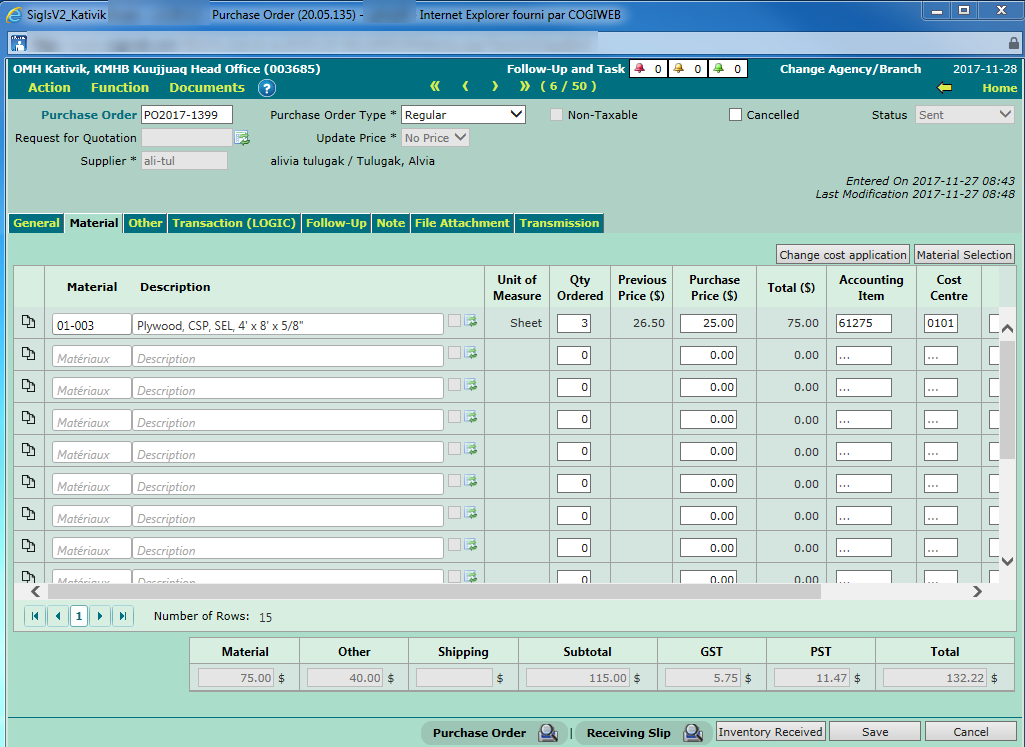
- The "Material Selection" button enables you to open a search window that lets you select one or several materials. This button is available only if the purchase order's status is "Incomplete" or "In Preparation".
- The "Material" field enables you to enter a material's code. Please note that a material can be ordered without entering its code, by entering its description only.
-
- The material code is validated using the list of existing materials. Only existing codes can be saved.
- Once you begin typing the code's first characters, a drop-down list displays the material codes that match those characters.
- The user selects one of the codes on-screen, or enters the material's complete code. The other pieces of information will then show up (Material, Description, Material - Supplier, Unit of Measure, etc.).
- The "Description" field is mandatory. This field enables you to enter a portion of the description in order to select a material.
-
- The material description is validated using the list of existing materials.
- Once you begin typing the description's first characters, a drop-down list displays the material descriptions that match those characters.
- The user selects one of the descriptions on-screen. The other pieces of information will then show up (Material, Description, Material - Supplier, Unit of Measure, etc.).
- If the description entered by the user does not match an existing one, the row will be saved as a new material. Once saved, all rows without a material code will appear after the existing materials.
- The "Unit of Measure" field cannot be modified.
- The "Qty Ordered" field is mandatory. This field enables you to specify the quantity to order.
-
- The quantity must be an integer. If the quantity entered is 0, the material row will not be saved.
- The "Previous Price ($)" field displays the price paid on the last purchase order. This field cannot be modified.
- The "Purchase Price ($)" field enables you to enter the material's unit price.
- The "Total" field provides the product of the quantity ordered multiplied by the unit price.
- The "Accounting Item" field displays the accounting item the material is associated to.
- The "Cost Centre" field displays the cost centre the material is associated to.
- The "Material-Supplier" field is optional. This field enables you to specify the supplier-provided material's code.
-
- The material's code will show up automatically, if it already exists for the supplier.
- The "Manage B.O." box is always checked by default.
-
- This box indicates whether the non-received remaining quantities must be taken into account when receiving an order.
- If this box is left unchecked, the order can be closed even though the quantity received is less than the quantity ordered.
- The "Del." box is left unchecked by default. This box enables you to select material rows to be deleted.
-
- The selected rows are deleted once the "Save" button is clicked.
- The "Material, Other, Shipping, Subtotal, GST, PST, Total" information block cannot be modified. This block displays the order's grand total (not the total for the current page).
- Click the "Save" button to save the information.
Purchase Order Statuses
The table below describes the miscellaneous statuses a purchase order can be associated to.
| Status | Description |
| Incomplete | Initial status, as long as only the "General" tab has been completed. |
| In Preparation | One or several material rows, or rows under the "Other" tab, have been entered and saved. |
| Sent | The conditions for the "In Preparation" status are met, and the "Purchase Order Sent" box has been checked. |
| In Receipt | None of the order's materials has been received. |
| Closed |
All ordered quantities have been received.
|
| Cancelled | The "Cancelled" box has been checked. |
Please Note
None of the fields can be modified when the status is "In Receipt", "Closed" or "Cancelled", except for the "Cancelled" box, which can be unchecked when the status is "Cancelled".
The number of rows per page can be defined in the footer. The options available are 10, 15, 25 or 50 rows per page. The system displays 10 rows per page, by default.
The "Other" Tab
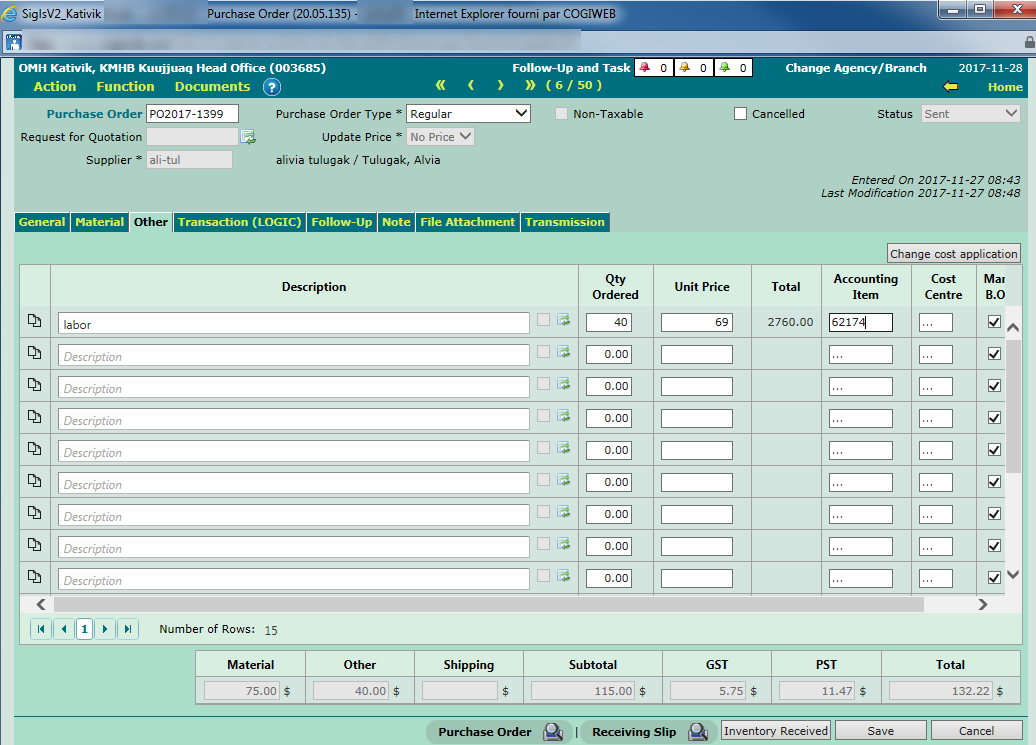
- The "Description" field enables you to enter the material's or contract's description you wish to obtain a price for.
- The "Qty Ordered" field enables you to enter an integer or decimal number, as needed.
- The "Unit Price" field enables you to enter a value between 0.00 and 9 999 999.99.
- Le champ "Total" the product of the quantity ordered multiplied by the unit price.
- The "Accounting Item" field displays the accounting item the material is associated to.
- The "Cost Centre" field displays the cost centre the material is associated to.
- The "Del." box is left unchecked by default. This box enables you to select material rows to be deleted.
-
- The selected rows are deleted once the "Save" button is clicked.
- The "Material, Other, Shipping, Subtotal, GST, PST, Total" information block cannot be modified. This block displays the order's grand total (not the total for the current page).
- Click the "Save" button to save the information.
Searching for Purchase Orders
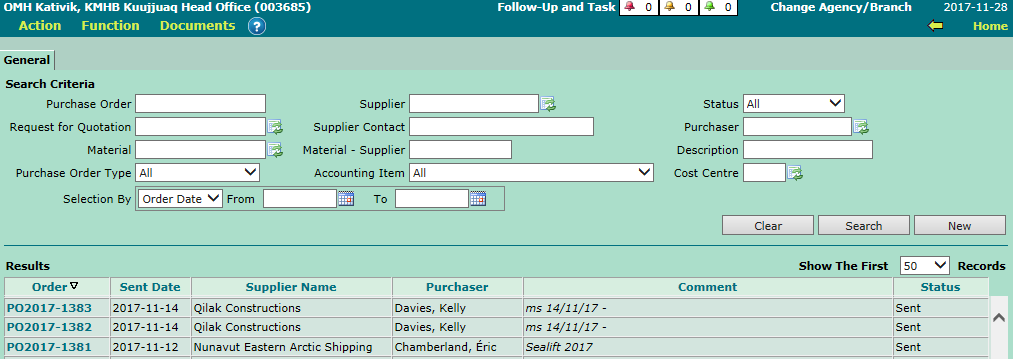
You may search for purchase orders using several criteria. Searching by status is great for viewing the progress of a purchase order.
Printing the Purchase Order Form
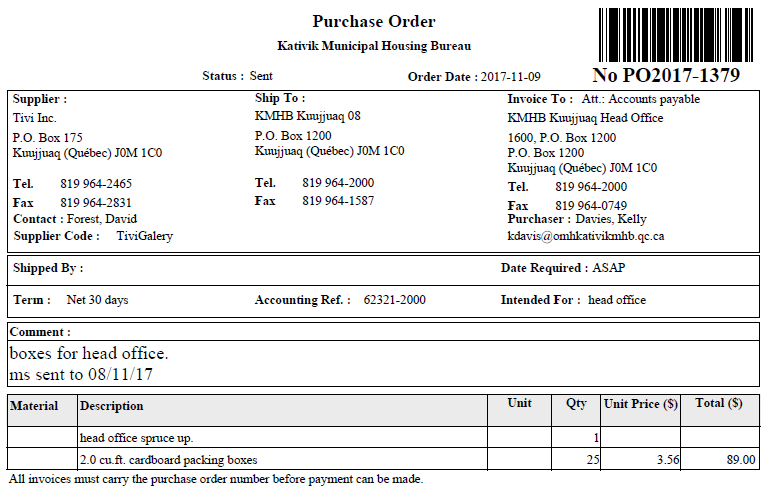
To print the purchase order form, simply click the "Purchase Order" icon at the bottom of the "General" tab.
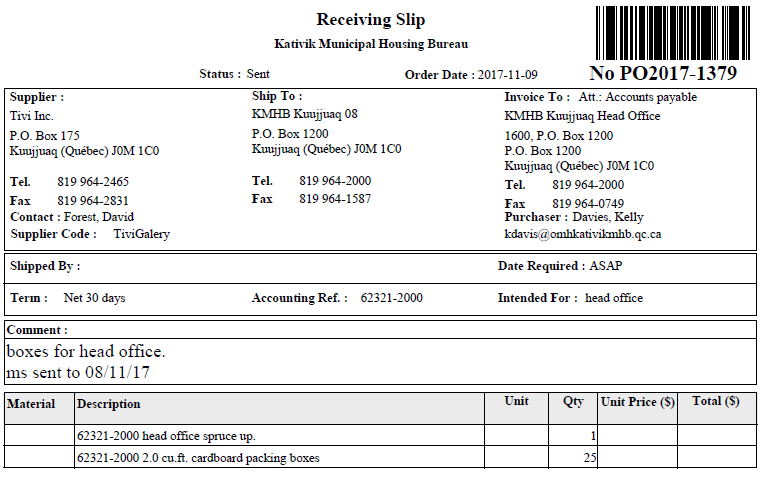
If you wish to print the purchase order without the materials' price, click the "Receiving Slip" icon instead. Please note that this icon does not show up when the order's status is "Incomplete".
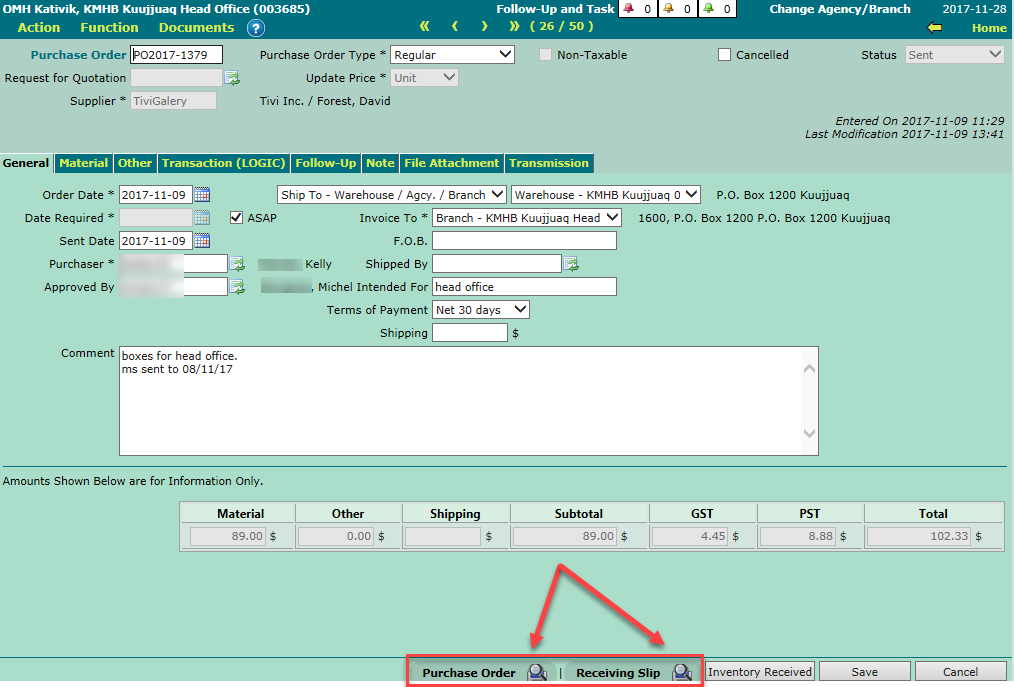
The purchase order form will be printed in one or several copies, depending on the configuration.
The information on the footer differs from one copy to another. The "Note to Suppliers" information may also be different.
Furthermore, the materials' unit price may be shown or not on one or several copies, depending on the configuration.
Purchase Order Form Example
Receiving Slip Example
© COGIWEB, 2024