Aide en ligne SIGLS - OMH Kativik - MAJ 2024-11-27
Work Order Bulk Closing
<Accueil » Maintenance » Work Order Bulk Closing
The "Work Order Bulk Closing" screen enables you to cancel, complete or close one or several work orders simultaneously, and assign a new agent to the selected work orders.
Searching for Work Orders
The "Search Criteria" section enables you to search for work orders, using miscellaneous criteria. The following search criteria are available:
- Work Order Category
- Person in Charge
- Work Order Sub-Category
- Assigned Agent
- Opening, Completed and Closed date range (From, To)
- Branch
- Work Order Status
- Group Component

Closing Work Orders
Here are the steps to follow for closing one or several work orders:
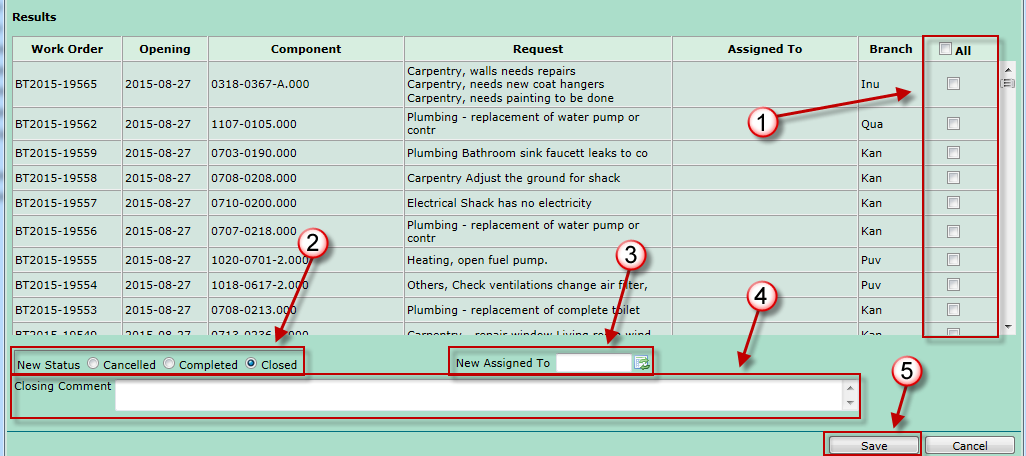
- Select the work orders to be closed or assigned to another agent.
- Select the new status ("Cancelled", "Completed" or "Closed").
- Select a new agent to be assigned, if applicable, using the corresponding list of values.
- Type in a closing comment, if applicable.
- Click the "Save" button to save the information.
Quick Closing of Work Orders
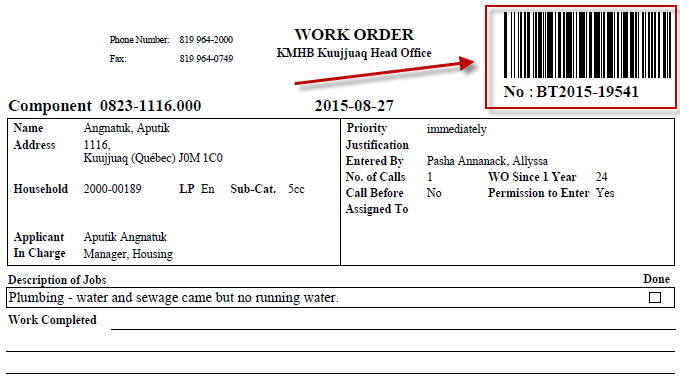
Work orders can be closed using a barcode scanner. To do so:
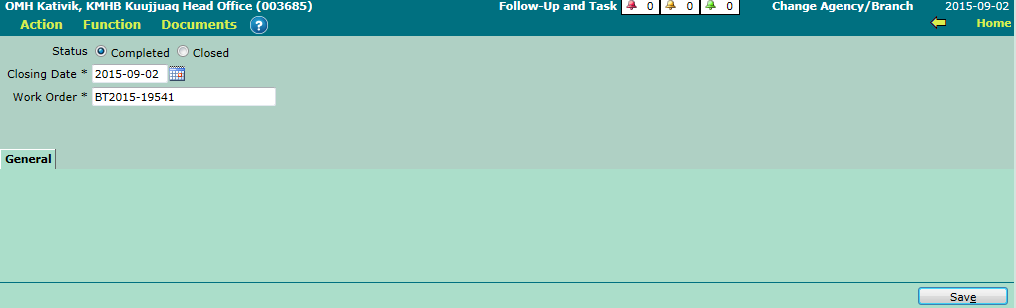
- Go to "Maintenance -> Work Order -> Work Order Closing".
- Select the appropriate work order status ("Completed" or "Closed").
-
Modify the closing date, if needed.
- Today's date is entered by default.
- Scan the barcode using a barcode scanner. This action will result in auto-entering the work order's number in the "Work Order" field.
- Click the "Save" button.
© COGIWEB, 2024