Automatic Rent Increase
<Accueil » Building » Automatic Rent Increase
The "Automatic Rent Increase" processing enables you to apply rent increases in bulk. Hence, this processing avoids having to increase each rent individually under the "Cost" tab, on the "Dwelling" screen.
Rent increases are usually applied before the leases' renewal.
The "Automatic Rent Increase" processing can be accessed under "Building -> Process -> Automatic Rent Increase".
Simulated vs Actual
The processing enables you to simulate the increase ("Simulated") or directly apply the increase ("Actual"). The "Simulated" processing enables you to assess the impact of the increase before applying it, whereas the "Actual" processing will apply the increase right away.
We strongly recommend to carry out a "Simulated" processing prior to applying the actual increase.
Please note that the increase is always rounded, whether the processing is "Simulated" or "Actual".

"From" and "To" Dates
The "From" date represents the new cost period's start date, whereas the "To" date represents the cost period's end date. By default, the "To" date is 9999-12-31.
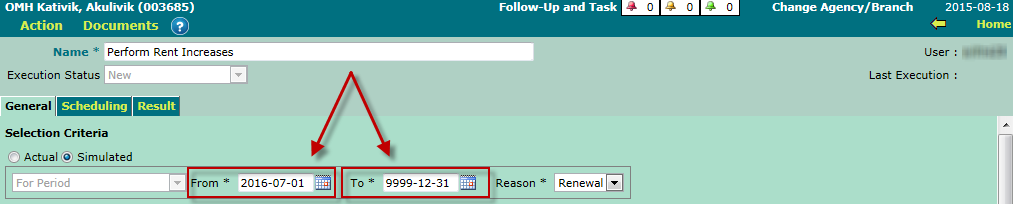
When applying an annual increase, the 9999-12-31 date cannot be modified. This date must be modified only if a specific existing cost row needs to be adjusted in the past or in the future.
Search
Several selection criteria enable you to find the dwellings that require a rent increase.
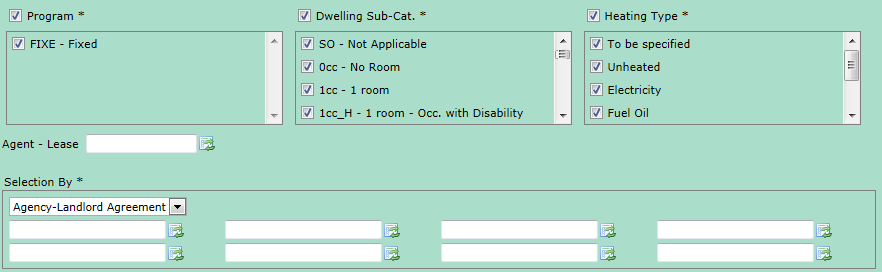
You may select one or several programs, dwelling sub-categories and heating types. Furthermore, you may also select a specific "Agent - Lease".
Selection By
The "Selection By" section is mandatory in order for the processing to be carried out. You may select one or several values, for one of the following items:
- Building
- Cost Centre
- Dwelling
There are two options for rent increase:
- The increase suggested by the Régie, according to heating type;
- A specific increase.

The increase rates suggested by the SHQ are updated yearly, on March 1st.
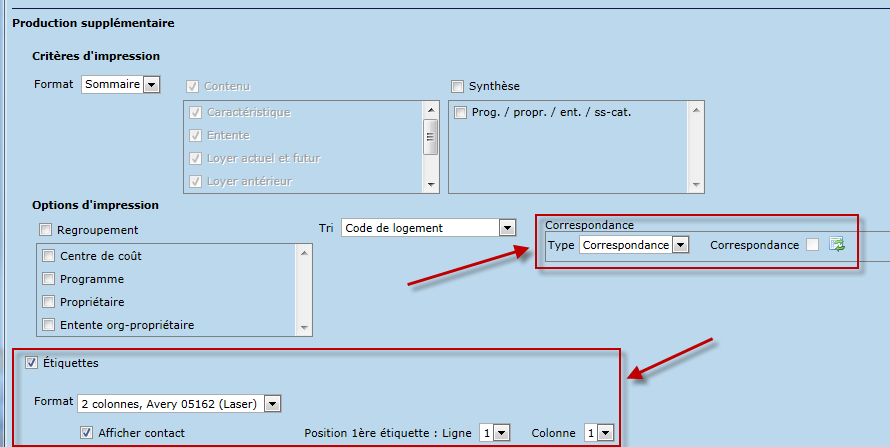
Finalement, l'écran permet de générer automatiquement des correspondances et des étiquettes à l'attention des propriétaires du logement augmenté. Pour ce faire, sélectionner les documents souhaités dans le groupe d'options "Correspondance" et cocher la case "Étiquettes".
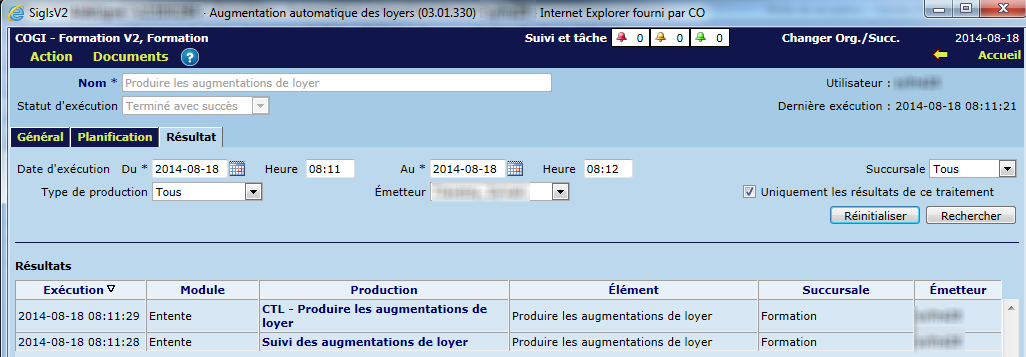
Lorsque le traitement s'effectue avec succès, le suivi des augmentations de loyers, les correspondances et les étiquettes réalisées se retrouvent sous l'onglet "Résultat".
© COGIWEB, 2024